


Fix speech bubbles, text, fonts, and reading order
Separate generated artwork from editable dialogue and correct speaker, layout, and legibility problems.
Time: 5–15 minutes per page.
Text generated as part of an image can be misspelled or unreadable. When possible, treat the panel artwork and editable speech-bubble text as separate layers.
Correct the dialogue first
- Compare the visible text with the approved script.
- Identify the speaker for every line.
- Shorten long dialogue before reducing the font size.
- Edit the text in the bubble or text control when it is an editable object.
- If incorrect text is baked into the artwork, remove or repair that area, then add an editable bubble over the clean panel.
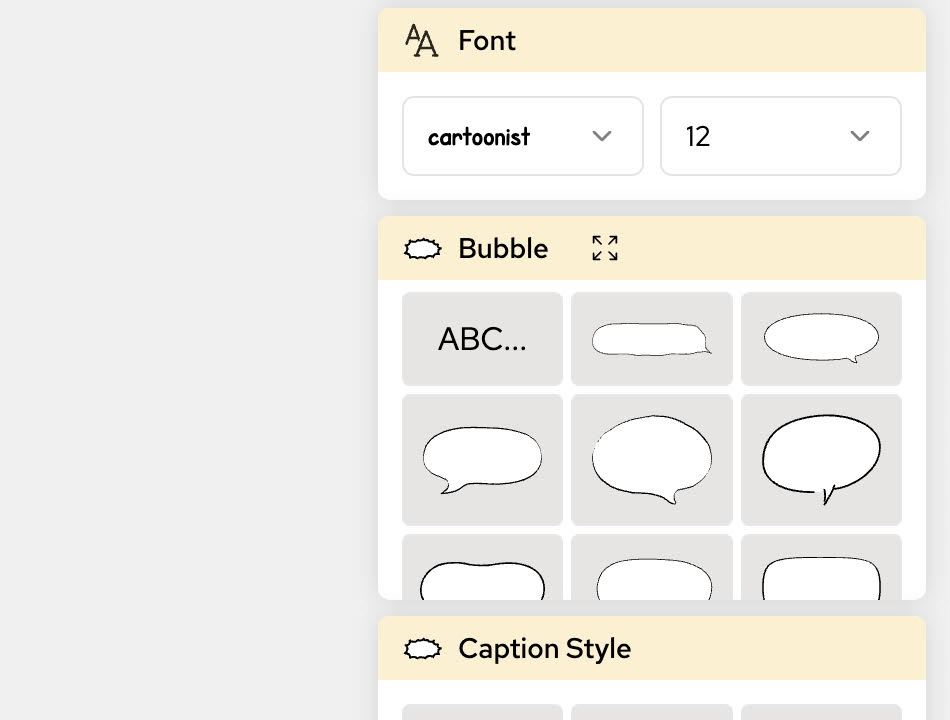
Fix bubble placement
- Keep the tail pointed toward the correct speaker.
- Avoid covering faces, hands, or plot-critical objects.
- Leave enough inner padding around the text.
- Keep related bubbles close enough to read as one exchange.
- Recheck the page at the final export size.
Check reading order
For left-to-right comics, readers usually scan from the upper left across and then down. For right-to-left manga, use the intended manga order consistently. For vertical webtoons, order dialogue from top to bottom and avoid side-by-side ambiguity.
When two bubbles compete for first position, move the first speaker's bubble higher in the reading path or separate the dialogue into another panel.
Fonts and scripts
Use a font that contains the characters required by the language. Check punctuation, line breaks, diacritics, Japanese kana and kanji, Korean Hangul, Chinese characters, and right-to-left scripts after export. Font appearance and available controls can differ by editor and device.
If text remains unreadable
Export one test page and inspect it at 100% size. If the editor preview is correct but the export is not, keep the artwork ID, export format, browser, language, font name, and screenshots of both states for support.