


Redraw one panel without changing the rest of the comic
Make a focused panel correction while preserving accepted pages, layout, dialogue, and neighboring artwork.
Time: 3–10 minutes for one panel, excluding generation time.
Use Redraw on the affected panel instead of regenerating the entire artwork. For paid-plan users on eligible standard comic models, the first 10 redraw operations per comic currently cost 0 credits (not 10 per panel). There are important exceptions: Free users pay 100 credits per redraw, redraws after the eligible paid allowance cost 100 credits, and certain premium Pro models cost 600 credits per redraw without a free allowance. See full eligibility and exceptions. Always review the displayed credit information before confirming.
Desktop web
- Open the existing comic project.
- Select the panel that needs correction.
- Open its panel controls or context menu and choose Redraw.
- Keep the prompt details that are already correct.
- Change only what must be different, such as the pose, expression, camera angle, missing prop, or character detail.
- Confirm that the intended character and reference are attached.
- Review the displayed credit cost or eligibility, then start the redraw.
- Compare the new panel with the previous version and its neighboring panels before continuing.
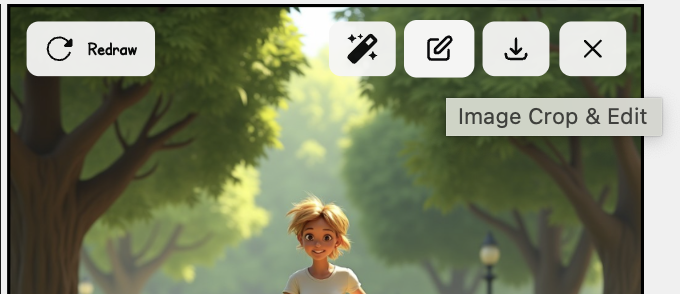
Mobile web
Tap the panel and look for its available edit or redraw action. If the small-screen layout does not expose the control you need, reopen the same project on desktop. Do not create a second project just to reach the editor.
Prompt pattern for a focused redraw
Keep stable identity and scene details first, then state the correction:
Same character identity, short black hair, green jacket, same night train platform and ink style. Change only the right hand so it holds the red ticket. Medium shot, worried expression.
Avoid rewriting the full story or changing style, age, clothing, and camera direction at the same time.
If the result is worse
- Do not redraw all other panels to match a weak result.
- Review Generation history or Version history when available.
- Restore or keep the strongest version, then make a narrower prompt change.
- For text-only problems, edit the bubble or text object instead of redrawing the artwork.
Redraw is a new generation and can change details beyond the requested edit. Always compare the full panel, not only the corrected area.