


Print comics and prepare a PDF
Print your comic, export selected pages to PDF, choose paper dimensions, and check margins and image quality before printing.
Start from your saved comic at AI Comic Strips. Review the pages and wait for all artwork to load before preparing a print copy.
Choose the right route
| You want to… | Use… |
|---|---|
| Print all comic pages with their page proportions | Download → Print → Use My Printer |
| Choose only certain pages, a paper size, or orientation | Open the Download settings, choose PDF, and configure the options |
| Review a dedicated PDF preview with paper and page-selection controls | Download → Save All As PDF; all pages start selected, and you can deselect pages in the preview dialog |
| Review a separate browser print preview | Download → Print → Open Print Preview, then review the settings and choose Print |
| Learn about LlamaGen's planned print service | Download → Print → Print with LlamaGen; this opens the print-service information/waitlist page, not an available physical-book checkout |
Use My Printer and the PDF download panel are different routes. Use My Printer prepares all pages with Auto Fit (No Padding); it does not use a Custom page selection from the download panel. Use the PDF panel when you need control over the exported pages or paper dimensions.
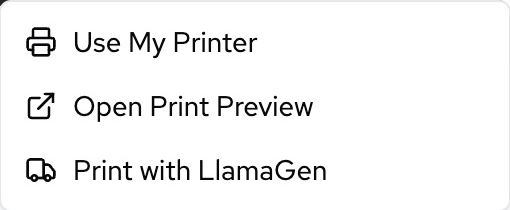
These screenshots show the live product’s English interface. Account details and comic artwork have been cropped out. The control names below match that interface.
Print with your own printer
- Open the editor's Download menu, then Print → Use My Printer.
- Wait while LlamaGen captures the comic pages and prepares the PDF.
- On supported desktop browsers, the PDF is sent to the browser's print flow. Select your printer and review the preview before confirming.
- On mobile, or when browser printing is unavailable, a PDF downloads instead. Open it in your device's PDF viewer or Files app and use that app's Print or Share action.
- Print one test page before printing the entire comic. Check text size, paper orientation, and clipping.
If the system print window does not open, use the PDF download steps below and print the saved file. Printing the editor webpage with a browser shortcut can include interface controls; a prepared comic PDF is the more predictable starting point.
Open Print Preview is a separate route: it opens a new tab with paper-size, caption, and Print controls. Review the preview, then choose Print to invoke browser printing. It does not automatically download a PDF or place a print order.
Export selected pages to PDF
- Open Download and choose PDF as the file type.
- Under Paper size, choose a preset or Custom. Choose Portrait or Landscape to match the intended document orientation.
- Under Select pages, choose All, This page (N), or Custom. For Custom, select pages individually in the page list. The exported PDF keeps their original order.
- Leave Download pages as separate files off for one multi-page document. If enabled with a paid plan, individual page PDFs download in a ZIP. Compress PDF is also a paid option and can reduce image quality.
- Download the PDF. Open it outside LlamaGen and inspect the page count, page dimensions, margins, and lettering before printing.
The separate Save All As PDF menu entry opens a dedicated PDF preview. It starts with all pages selected, but you can deselect individual pages and change paper settings in that dialog. Both PDF workflows support page selection and paper settings; only Use My Printer fixes the capture to all pages with Auto Fit.
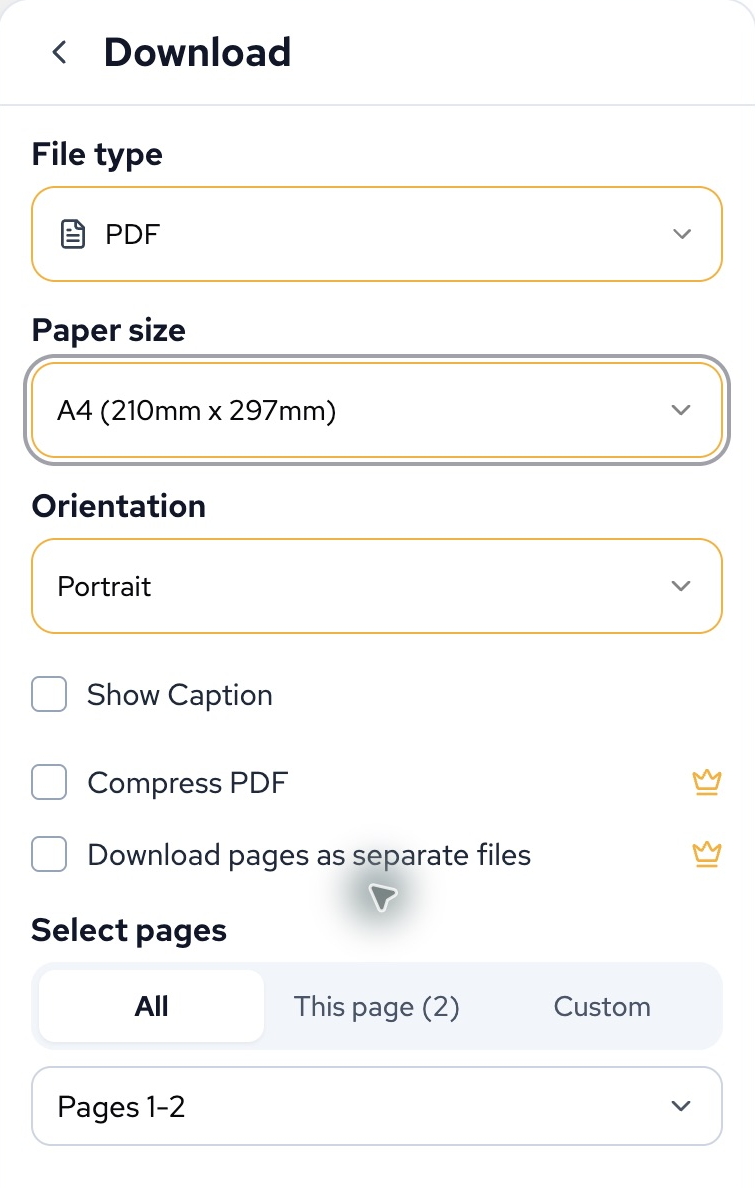
Desktop example from the live product, with A4 selected. The paid switches are off; choosing paper and export settings does not change the editable comic.
Paper size and the editable page are different
Paper settings control how the rendered comic page fits into the output document. They do not change the page layout, panel count, or canvas size in the editor. Change those in the editor first if the composition itself needs to change.
Available presets include Auto Fit, Webtoon-labelled sizes, 11 × 17 inch and 6.625 × 10.25 inch comic sizes, and A4, B4, B5, A5, and B6. Custom accepts a width and height in millimetres, each from 20 to 5080 mm. There is no dedicated Letter preset; use Custom when you need a paper size that is not listed.
- Auto Fit (No Padding) fits the document to the captured page proportions without preset padding. It does not guarantee that a physical printer can print to the edge of the paper.
- Fixed-size presets fit and centre the comic within the available paper area, keeping its proportions. A different aspect ratio can leave blank space.
- Webtoon-labelled presets are PDF paper presets; their names do not guarantee matching pixel dimensions or upload readiness for an external publishing service.
In your PDF viewer's print settings, compare Actual size / 100% with Fit to printable area. The available wording depends on the browser and printer. Check the preview rather than assuming either setting is always correct. A printer's non-printable margins can crop content even when the exported PDF has no padding.
Image quality and publishing limits
The comic PDF uses rendered page images. It is not a layered editing file or a guaranteed vector/text PDF. SVG download can also contain raster images. Enlarging a PDF or choosing a larger sheet cannot create detail that was missing from the original artwork.
The current comic export controls do not provide a 300-DPI guarantee, CMYK conversion, bleed settings, or crop marks. If a print shop or book publisher requires those, prepare and validate the final production file in an appropriate layout tool. Confirm the supplier's requirements before sending it the file.
Keep important text and faces away from paper edges, check small lettering at the intended physical size, and make a test print. Review a Classroom pack's generated questions and answer key separately from the comic pages if you are printing teaching materials.
Troubleshooting printing
| Symptom | Try this |
|---|---|
| No print window appears on a phone | Open the downloaded PDF and print from the device's PDF viewer. The mobile Use My Printer route downloads a PDF. |
| Only some pages should print | Export a PDF with Custom page selection; Use My Printer captures all pages. You can also select pages in a PDF viewer's print dialog. |
| Blank space surrounds the comic | Compare the page proportions with the selected paper size. Fixed-size presets centre the artwork and may include padding; Auto Fit is a different choice. |
| The print is cropped | Check the printer's paper, orientation, non-printable margins, and scale-to-fit setting. Export again with appropriate paper dimensions if needed. |
| The print looks soft | Inspect the original artwork and the PDF at the intended print size. Try an uncompressed PDF; changing paper size alone does not increase source detail. |
| A custom size prevents downloading | Enter both dimensions in millimetres within 20–5080. Do not enter inches or pixel values in these fields. |
| A large comic fails to prepare | Export a smaller selection first, keep the editor open, and try desktop if the mobile browser runs out of memory. |
If the issue remains, contact support with the project URL, export route, selected pages, paper dimensions, orientation, device/browser, and a screenshot of the preview. For clipping or scaling problems, include the print settings and whether the saved PDF itself looks correct.
See also: Download and export your comic, Export a comic to PDF, and Print a comic.