


Draw a sketch and use it as an image reference
Learn the Sketch canvas controls, download a PNG, or add your drawing as a reference in Images without losing your prompt.
Sketch is a simple white canvas for communicating a pose, composition, object, or scene. Drawing does not start an AI generation or spend generation credits.
About the pictures: The four images below are cropped from user-provided ChatGPT Sketch interaction references. They are not screenshots of the live LlamaGen product. They illustrate interaction patterns; follow the LlamaGen controls and the steps below. Browser chrome and unrelated conversation content have been removed.
Choose where to start
| Entry point | How to open it | What the checkmark does |
|---|---|---|
| Standalone canvas | Open Sketch. You can draw without signing in. | Downloads a PNG to your device. It does not add the drawing to Images automatically. |
| Reference for an image | Open Images, open the composer's More tools (…) menu, then choose Sketch. Sign in when prompted. | Uploads the drawing and adds it as a reference in the same composer, keeping your existing prompt. |
On desktop, the reusable canvas opens as a full-screen dialog. On mobile, it opens as a near-full-screen bottom sheet. Use the close button rather than trying to swipe the drawing area down.
1. Draw with the pen
Choose the pen in the top toolbar, then drag on the white canvas with a mouse, finger, or pen input. Start with the most important outlines; a rough sketch is enough to communicate your intent.
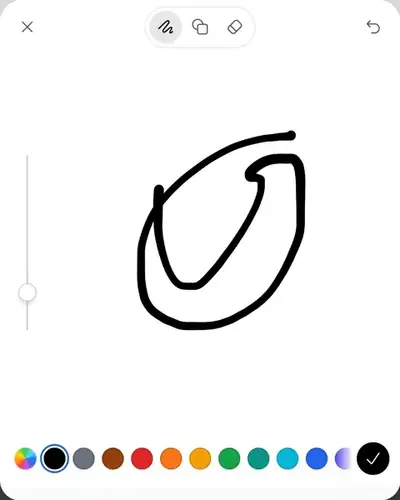
Reference 1 — freehand drawing. This is not a LlamaGen product screenshot.
2. Add a shape
Open the shapes control in the top toolbar. Choose a line, arrow, rectangle, ellipse, triangle, diamond, star, or heart, then drag from the starting point to the ending point on the canvas. Choose the pen again to continue drawing freehand.
Shapes are drawn onto the canvas; this version does not provide object handles for moving or resizing a shape afterward. Undo it and draw it again to change its position or size.
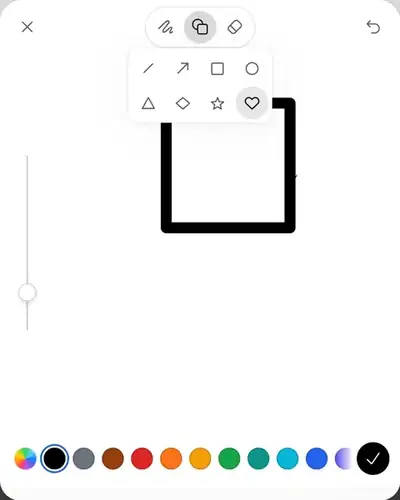
Reference 2 — choose a shape, then drag to draw. This is not a LlamaGen product screenshot.
3. Change line width and color
Use the vertical slider on the left to change the width of your next strokes. Tap a color at the bottom, or use the multicolor control to choose a custom color. On a narrow screen, scroll the palette horizontally for more choices. Changing these controls does not recolor or resize marks already drawn.
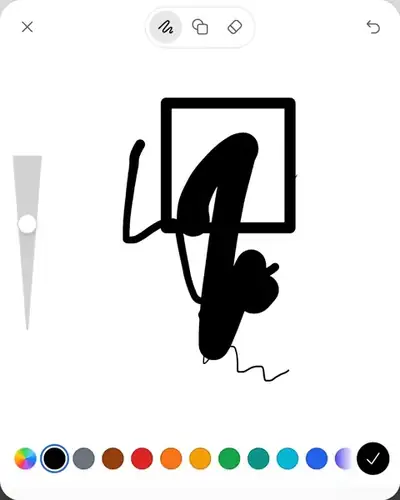
Reference 3 — stroke width and color controls. This is not a LlamaGen product screenshot.
4. Correct a mistake
Choose the eraser and drag over unwanted marks. Undo and Redo are at the top. On a keyboard, use Ctrl/Cmd+Z to undo and Ctrl/Cmd+Shift+Z to redo. The trash control in the bottom palette clears the drawing after confirmation; a clear operation can also be undone while the editor remains open.
5. Finish your drawing
Select the bottom-right checkmark. On the standalone page, check your browser's downloads for the PNG. When opening from Images, keep the canvas open until the upload finishes and the reference appears in your composer.
Adding a sketch as a reference does not generate an image. Review or write your prompt, check the model and credit amount shown in Images, then select Generate separately. For example: “Use my sketch for the composition: a small house on the left and a tree on the right. Keep those positions and render the scene in watercolor.” A sketch guides the result; it does not guarantee an exact copy.
The PNG has a white background and is a flattened image, not an editable project backup. There is no automatic cloud draft recovery in this version. Save or confirm before leaving the page; do not rely on refreshing, browser navigation, or closing a tab to preserve the drawing.
6. Close without losing work accidentally
Choose × to close. If there are unsaved changes, choose Keep editing to return to the canvas or Discard changes to leave without saving. Discarding the editor cannot be undone after it closes. The clear-canvas action described above is different: it keeps the editor open and remains undoable there.
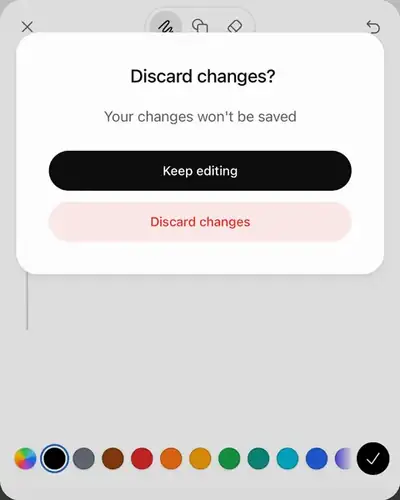
Reference 4 — confirm whether to keep editing or discard. This is not a LlamaGen product screenshot.
Troubleshooting
| What happened | What to do |
|---|---|
| The checkmark is disabled or an empty-sketch message appears | Add a visible mark. A blank or fully erased drawing cannot be exported as a new sketch. |
| Sketch is unavailable in the Images menu | Finish the current generation or remove an unneeded reference if the composer is at its reference limit. Follow the limits shown in the current interface. |
| Uploading fails or times out | Keep the canvas open, check your connection, and retry. An upload failure preserves the drawing in the open editor. Do not refresh or switch accounts/workspaces while saving. |
| The PNG downloaded but no reference appeared | The standalone Sketch page downloads locally. Add that PNG to Images, or open Sketch from the Images menu next time. |
For a persistent problem, contact support with the entry point, device/browser, time and time zone, exact error, and a screenshot without private information. Do not send passwords or session tokens.