


Panel management
Learn how to manage comic panels in LlamaGen.ai
Managing Comic Panels
Learn how to remove panels and change their order in your comic creation.
Removing Panels
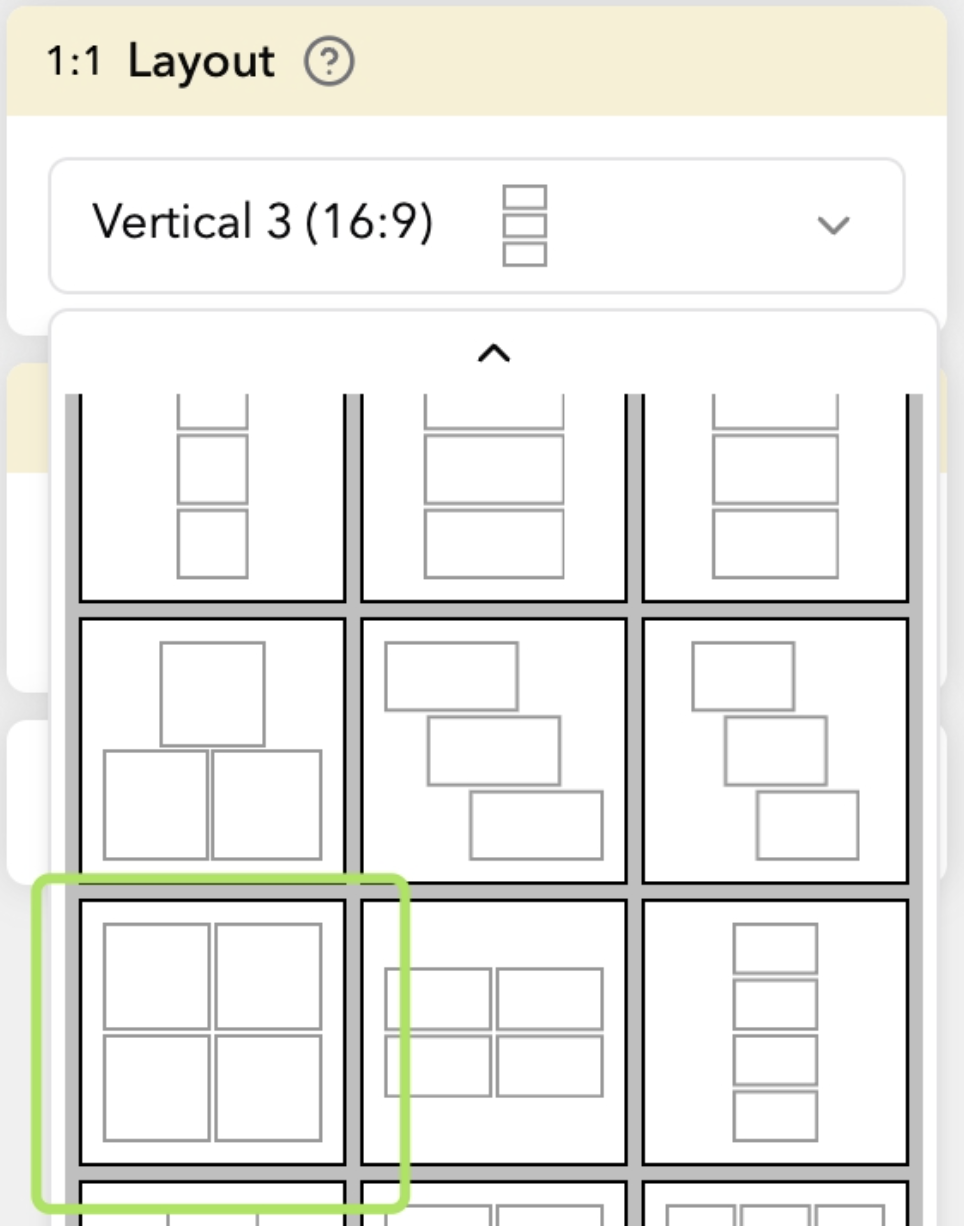
Select the Layout
You can directly select the layout you want, and excess panels will be automatically removed.
Changing Panel Order
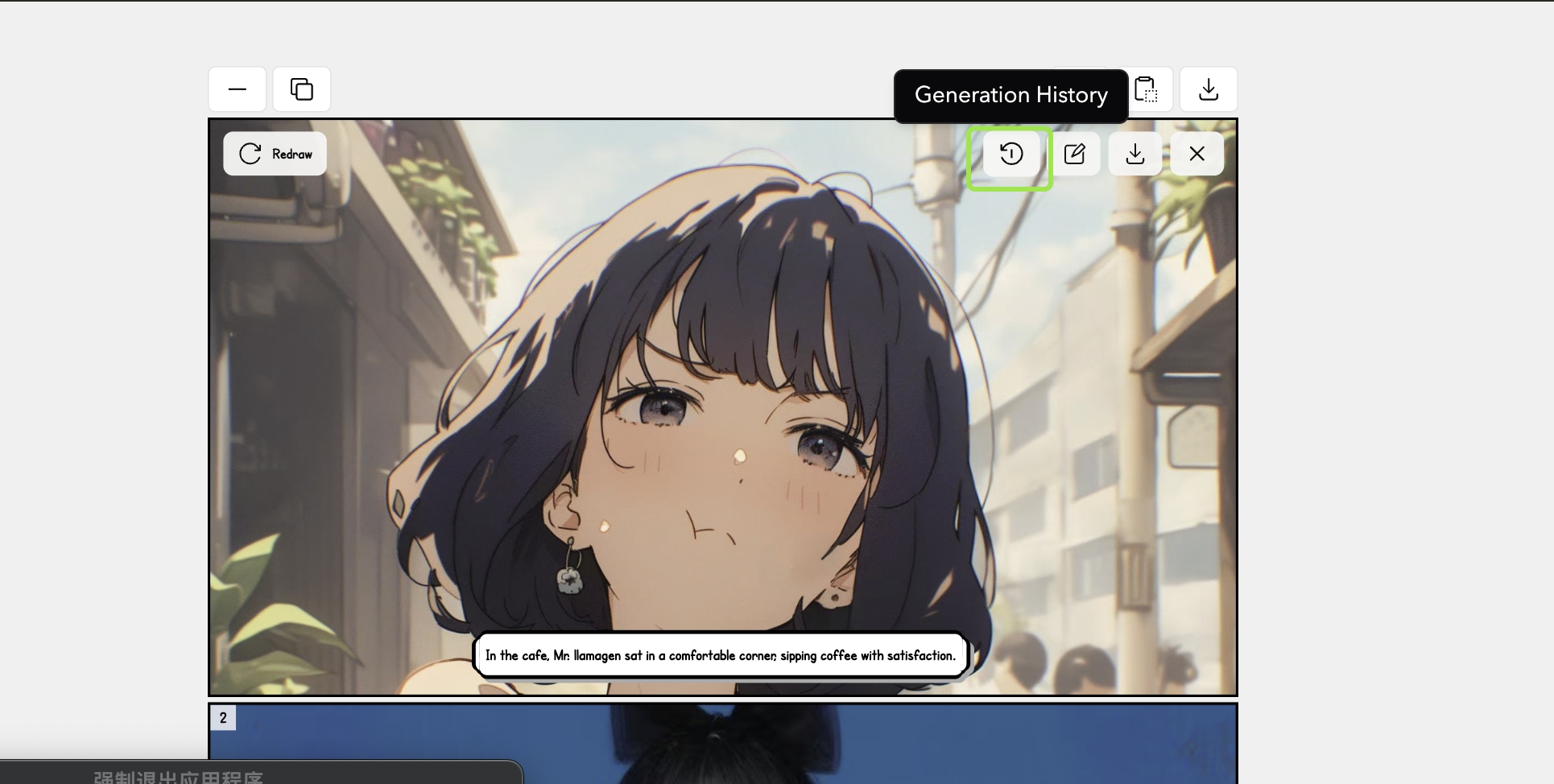
1. Access History
Click the generation history button to view previously generated panels.
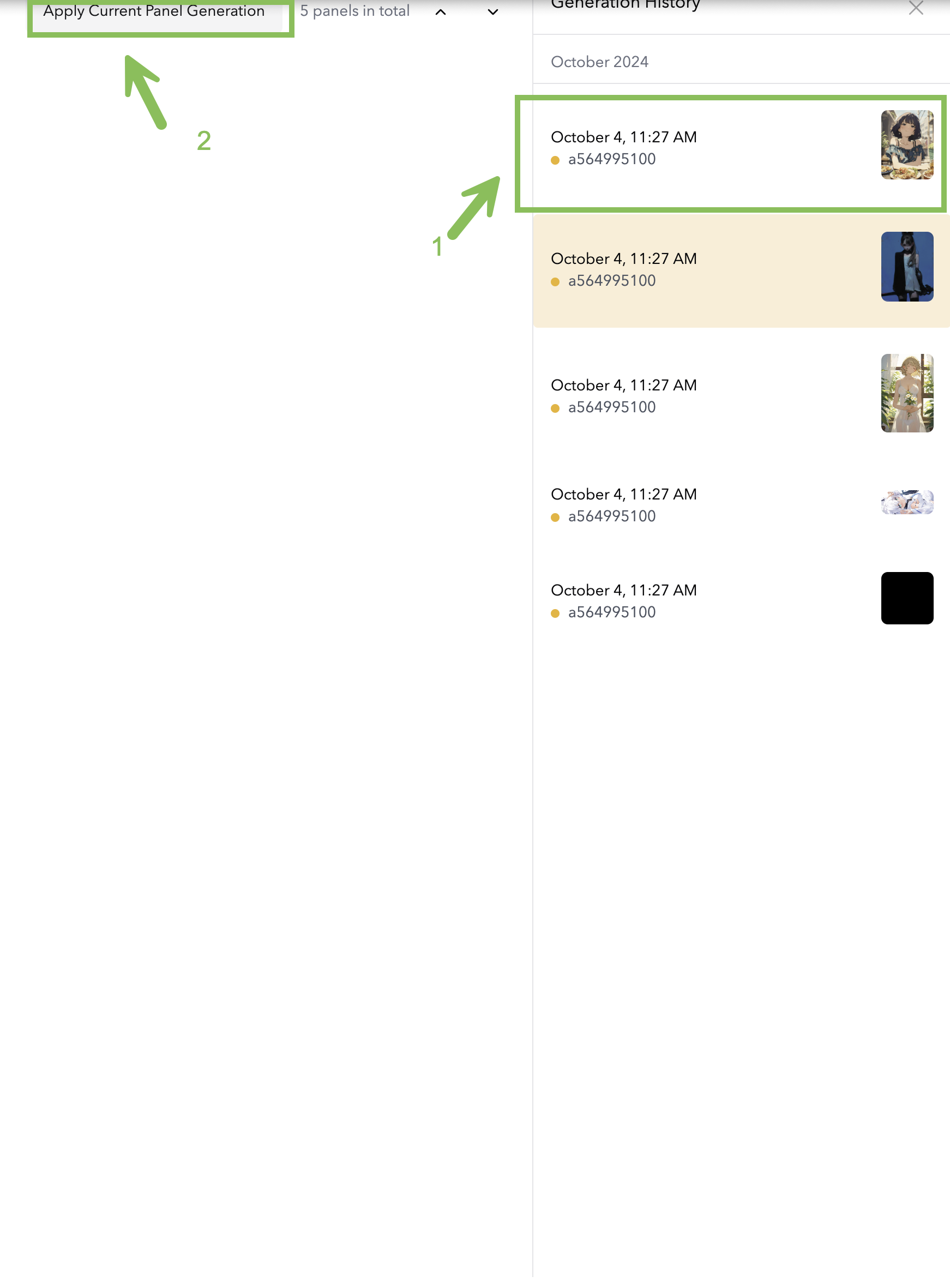
2. Select Image
Choose a previously generated image from your history and confirm to use it.
3. Modify Panel
Use the panel modification options:
- Crop existing image
- Generate new image with changed prompt
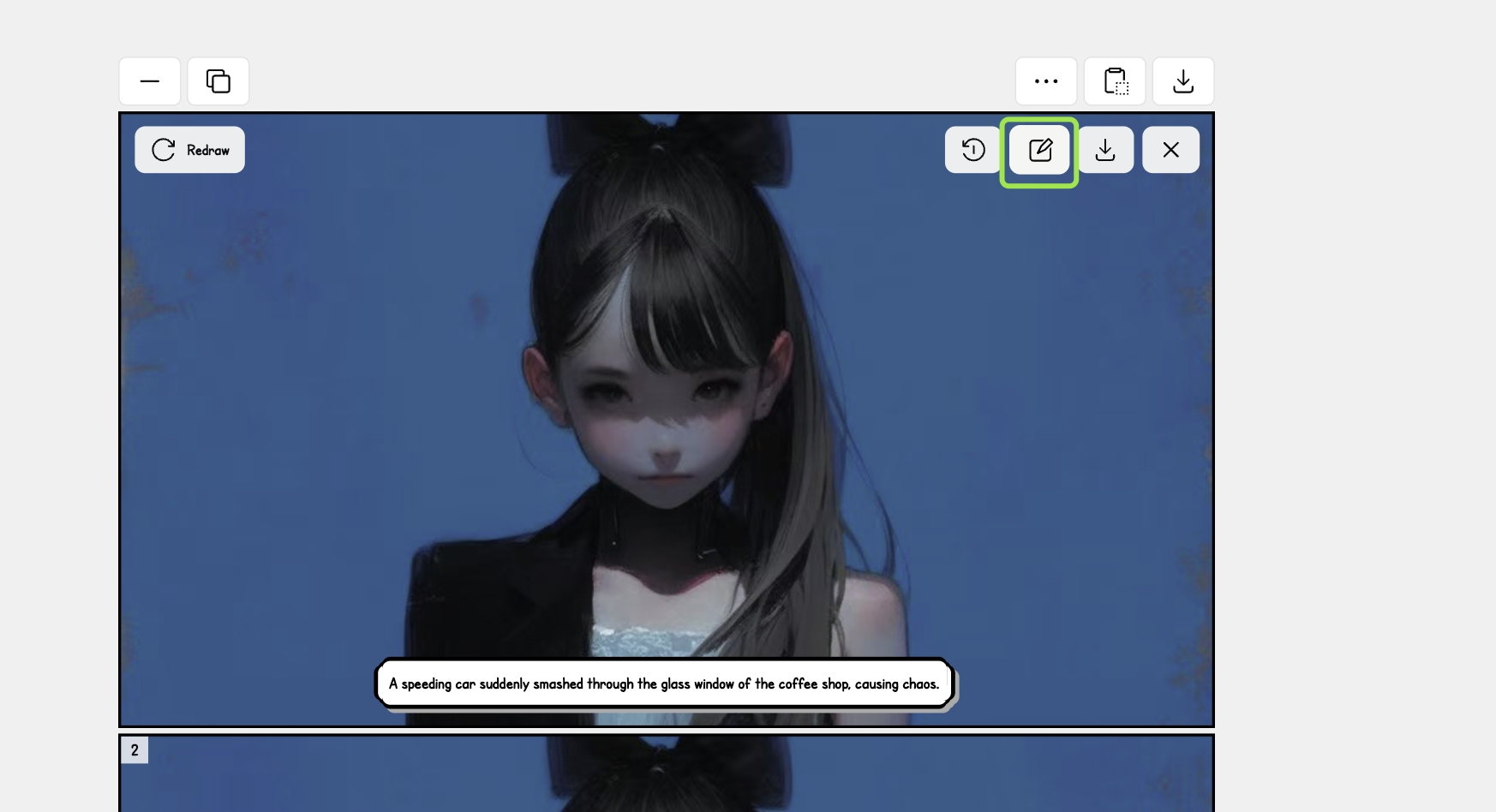
When generating a new image for a specific panel, changing the prompt will create a fresh image while maintaining the panel's position in your layout.
Restoring Panels and Archived Comics
Can I restore a deleted shot or panel?
Yes. Open your project, click the top-right three-dot menu, then check Generation History or Version History to find and restore previous shots. If you cannot find it, contact support with your account email, project name, and related IDs.
Where can I view archived comics and restore them?
You can view archived content at https://llamagen.ai/archive. Open an archived comic and follow the on-page steps to restore it. If restoration fails, contact support with your account email and project details.
Additional Options
If you need more panel management options or have specific requirements, our support team is here to help. Contact us for additional information or assistance.
Remember to save your work regularly when making panel adjustments to prevent any loss of progress.