


Choose an animation plan or add credits
Use the four-plan upgrade dialog in Animation Studio, switch monthly or yearly billing, compare plans, and choose between a subscription and a credit top-up.
Use this guide when Animation Studio asks you to upgrade or says you need more credits. Sign in to the account that should receive the subscription or credits.
Interface illustrations: plans, prices, offers, and available features are determined by the current page and checkout confirmation. The amounts in these images are examples, not a fixed price quote.
Choose a plan and billing cycle
- Open the upgrade or insufficient-credits dialog in the studio. The default view shows four plan choices. Names and trial offers can vary with your account.
- Select a plan row. Its outline and radio button indicate the selection; Continue with… follows the selected plan.
- Choose Monthly or Yearly. Review the price and billing note again. Annual billing shows a monthly equivalent alongside the annual total charged in one payment.
- Choose Continue with… when ready. If you already have a paid subscription, you may first see a plan-change confirmation. Review that confirmation and the final checkout details before proceeding.
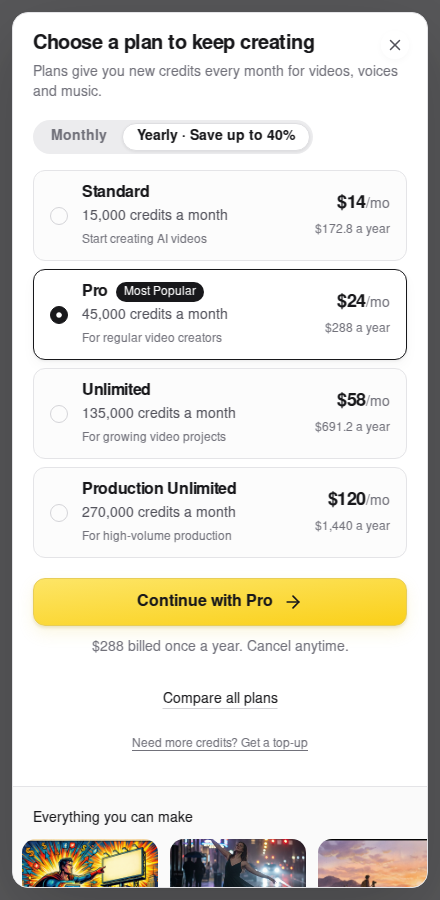
The dialog scrolls on a phone. Keep scrolling to reach the billing note, Compare all plans, and the credit top-up link.
Compare plans and return
Choose Compare all plans to see each plan's price, credits, included features, and any unavailable features. If a plan offers a credit-tier selector, use it to review the available allowance options.
On a phone, the detailed cards are stacked vertically; scroll down to compare all four. On a wide desktop, the four cards appear side by side.
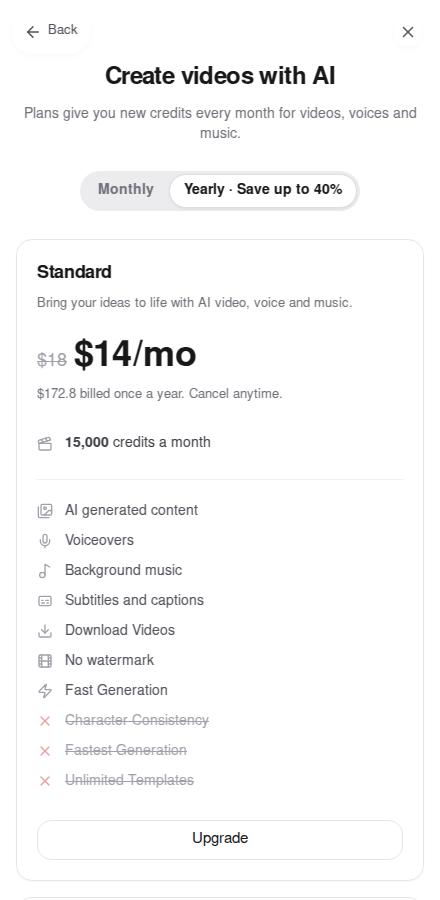
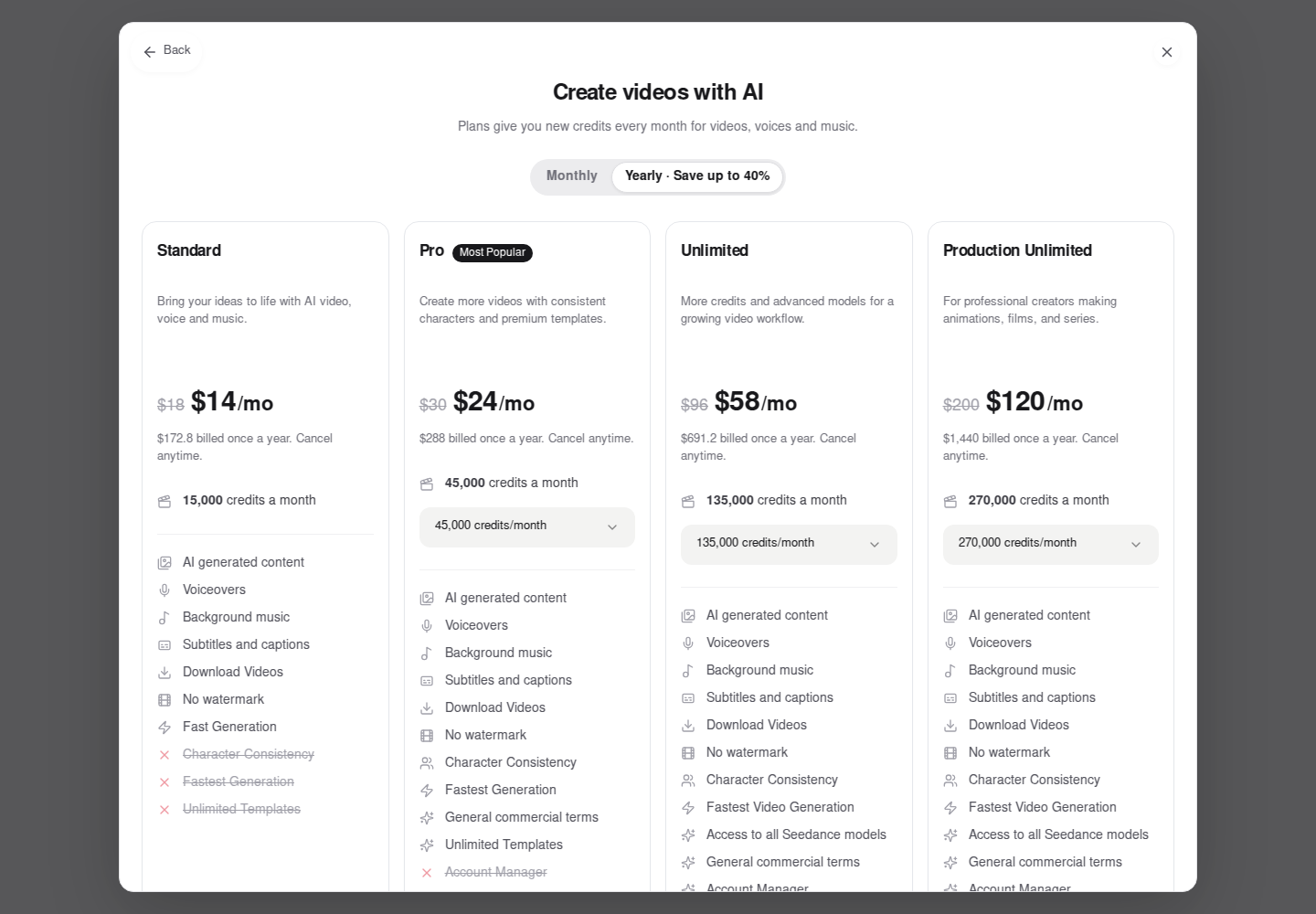
Choose Back to return to the compact plan list. Moving between this list, comparison, and credit packs preserves your selected plan, billing cycle, and a credit tier that remains available for that cycle while the dialog stays open. Upgrade on a comparison card continues with that card's plan.
Choose a subscription or a credit top-up
| What you need | What to choose |
|---|---|
| More generations using features already available on your plan | Need more credits? Get a top-up opens the available credit packs. Review the amount and terms before continuing. |
| An animation feature or model that requires a different subscription | Compare the plan features and choose an eligible subscription. |
| A larger recurring allowance | Review the plan and any available credit-tier options, then check the billing total. |
A credit pack adds credits. It does not unlock subscription-only animation features. If an upgrade prompt remains after buying credits, check the feature's plan requirement.
From the credit-pack view, choose Back to return to your plan choices. For credit validity and renewal details, read the terms shown for the selected offer and your credit usage information.
Explore the video examples
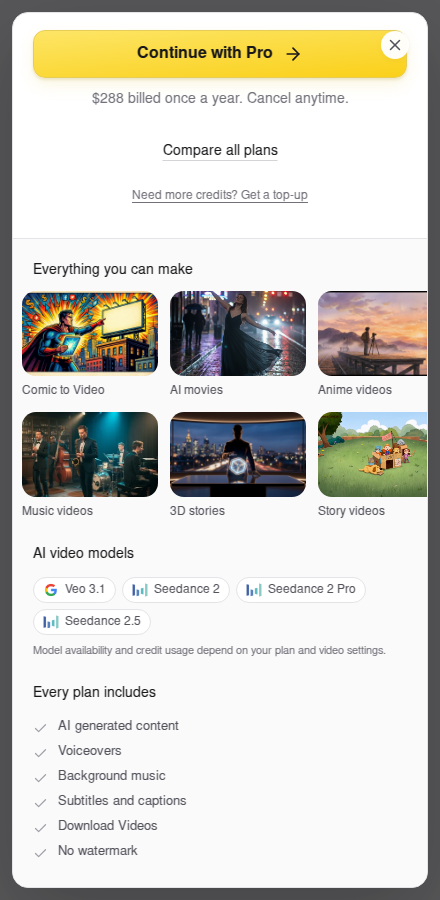
Scroll below the compact plan list to see Everything you can make, model names, and shared features. Model availability and credit usage depend on your plan and video settings.
Before you finish
- Check the selected plan or credit pack, billing cycle, total due, and any tax or trial terms. If an offer has an introductory price, check when the regular price starts.
- For an existing subscription, review the plan-change confirmation rather than assuming the change takes effect immediately.
- After payment, return to the same account and check its plan or credit balance. If the purchase is missing, follow Purchased credits are missing.
Was this article helpful?
Quick Start: AI Video Generator
Create your first video in Animation Studio from a story script, an idea, or an existing comic.
LlamaGen 101
Welcome to the Getting Started guide! This section will help you understand the basics of LlamaGen.Ai and get you started with creating your first AI-generated comic.